Visual Quality Settings
Our games include a Visual Quality option, usually found in the main game settings. Use it to fine-tune game performance for your device. If a game is running slowly, reduce the visual quality; if performance is comfortable, you can increase it.
Open the game Settings menu and look for Visual Quality.
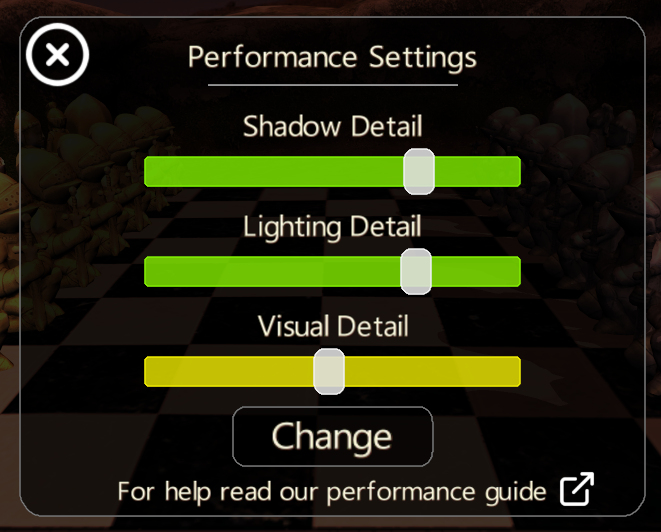
Shadow Detail
Some devices may have issues with shadow buffering. If this happens, lower the Shadow Detail setting. Fully left (red) gives basic in-game shadows, while fully right gives the maximum shadow quality available.
Note: Maximum shadow quality may still reduce performance. Lower the setting until you are happy with the result. After a first install or reset, the game starts with minimal quality settings.
Light Detail
As with shadows, you can reduce lighting quality to improve performance.
Visual Detail
Sometimes performance is affected more by geometry than shadow quality. Lowering Visual Detail reduces geometry and can improve device performance.
Contact Support
For any other questions or technical help, contact us at support@afterdarkstudios.co.uk.
Happy gaming!